

Critical Safety Labels – Why These Photos Are Required and How to Capture Them
This page explains why we’ve added the Critical Safety Labels photo category to the onsite app and provides guidance on how to capture these images correctly.
It is intended to support installers and retailers by reducing audit risk and avoiding follow-up evidence requests from the Clean Energy Regulator (CER).
What you need to know
New photo prompts have been added to the Formbay app and will appear on all existing and new battery jobs, in preparation for updated photo evidence requests from the Clean Energy Regulator (CER).
https://cer.gov.au/schemes/renewable-energy-target/renewable-energy-target-participants-and-industry/rooftop-solar-and-solar-battery-retailers- No return site visits are required for installations that have already been completed.
- You can still submit jobs even if these photos are not captured.
- No new physical labelling is required — these photos capture labels that are already required under existing standards.
Why these photos are being requested
From 1 March, the CER has advised that battery audits may request additional photo evidence to confirm that critical safety labelling is present and correctly installed.
These requests focus on:
- Meter boxes (inside and outside)
- Switchboards and shutdown procedures
- Battery safety and identification labelling
Rather than requesting this information after an audit is triggered, we’ve proactively added targeted photo prompts to the onsite app so evidence can be captured at the time of installation.
This approach is designed to:
- Reduce audit follow-ups
- Avoid repeat site visits
- Support faster audit resolution
Our role is to support you by translating regulator expectations into clear, practical onsite prompts — not to introduce new compliance obligations.
New photo category: Critical Safety Labels
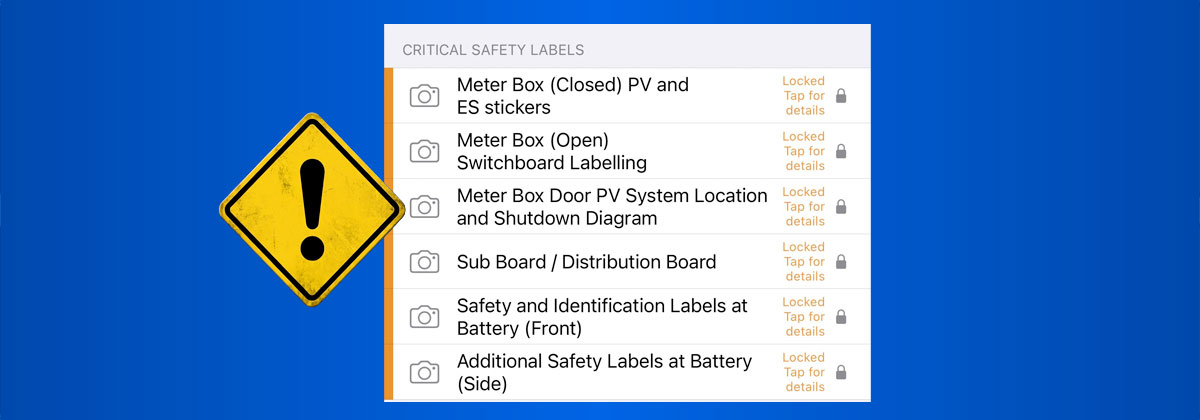
The following photo fields may appear in the onsite app for battery installations.
Meter Box (Closed) – PV & Energy Storage Warning Labels
What to capture:A clear photo of the closed meter box, showing all PV and battery warning stickers fixed to the outside.
- Ensure labels are fully visible and not obscured
- Step back far enough to show label placement clearly
Meter Box (Open) – Switchboard Labelling
What to capture:A photo of the open meter box showing switchboard labels identifying PV and battery circuits. Include photo of the shutdown procedure within meter box or at PCE.
- Open covers fully so labels are readable
- Avoid glare or shadows over the text
Meter Box Door (Inside) – PV System Location
What to capture:The inside of the meter box door, clearly showing the PV system location label.
- Make sure the entire diagram is in frame
- Check text and symbols are legible
Sub Board / Distribution Board – Safety & Circuit Labelling (if applicable)
What to capture:If a sub board or distribution board is used, take a photo showing all relevant PV and battery safety and circuit labels.
- Only required where a secondary board exists
- Capture the full board face where labels are applied
Battery (Front) – Mandatory Safety & Identification Labels
What to capture:A clear photo of the front of the battery showing all required safety and identification labels.
- Include the full battery face
- Ensure manufacturer and safety labels are readable
Battery (Side) – Additional Safety Labels (optional)
What to capture:A photo of any side-mounted labels, where fitted.
- Only required if labels are present on the side
- One clear image is sufficient
What this means for installers
- No new physical labelling requirements have been introduced
- These photos capture existing safety requirements
- Capturing them onsite helps avoid audit follow-ups later
By collecting this evidence once, during installation, you help ensure a smoother and faster audit process if the CER requests additional information.
Our commitment
We’ll continue to:
- Monitor regulator guidance
- Adjust onsite prompts where helpful
- Work with you as a supportive partner, not an enforcer
If you have feedback on these photo requirements or how they appear in the app, we welcome it.